Connecting to a Powered-Off Computer
When you are on a business trip or vacation, you may need to connect to your home computer to retrieve documents, launch an application, or check the progress of a task. If the computer is powered off, you need to turn it on first.
This guide covers three ways to prepare your computer for this type of connection: Wake-on-LAN, a smart plug, and scheduled power-on. Once the operating system starts, the Agent App automatically reconnects to your account, allowing you to begin working.
Installing and Configuring the Agent App
Complete the setup in advance while you have physical access to the computer. For remote access, you need to install the Agent App, link it to your account, and enable automatic startup.
Installing the Agent App
On the computer you want to control, download and install the Getscreen.me Agent App for your operating system. The installer is available in the Add Device window in your dashboard or in the public download center.
Installation Guide
Installation instructions for each operating system are available in the Agent App Installation Guide.
Configuring Permanent Access
During setup, link the app to your account. Make sure the computer appears in Permanent Access, then test a connection from another device.
Detailed Guide
Learn how to link a device in the Permanent Access guide.
Configuring the Agent App
Open the Agent App settings and enable Auto Run. Depending on the operating system, this option may be called Autorun or Run as daemon on system boot.
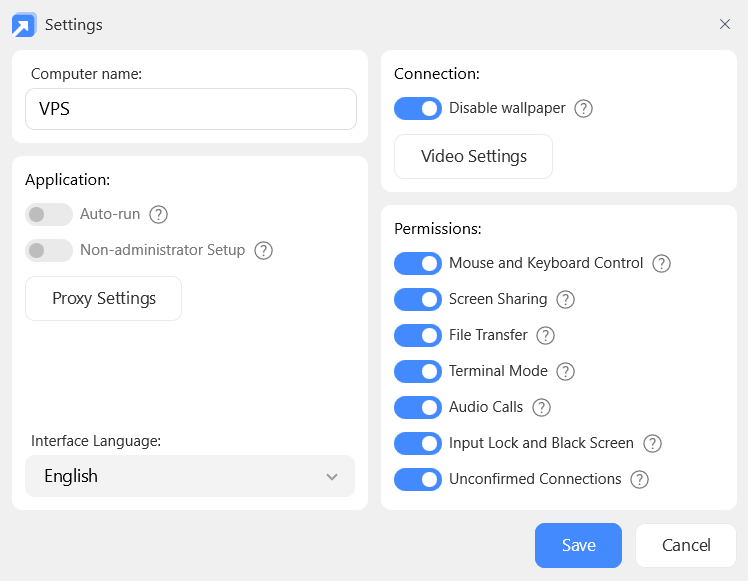
This setting allows the agent to start automatically when the computer turns on and reconnect to your dashboard. Without it, the computer may turn on but remain unavailable for remote access.
In the agent settings, allow mouse and keyboard control and connections without confirmation on the remote side. Otherwise, someone at the computer may need to approve the connection after it turns on.
Agent App Settings
Learn more about all available settings in the Agent App Settings guide.
Restart the computer and check that it comes back online without you having to launch the app manually. For unattended access, also test the connection before signing in to the operating system.
Operating System Startup
If a BIOS password must be entered or an encrypted disk must be unlocked before the operating system starts, the Agent App is not running yet and cannot display that screen. Keep this in mind when testing: turning on the power alone is not enough for remote access.
Waking Up the Computer
Choose a method based on your hardware and when you need access.
| Method | When to Use It | Requirements |
|---|---|---|
| Wake-on-LAN | Turn on the computer on demand from your dashboard | WoL support, Ethernet, and a configured delivery path for the wake-up command |
| Smart plug | Turn on the computer on demand through the plug's app | An internet-connected smart plug and BIOS/UEFI support for powering on when AC power is restored |
| Schedule | Your connection time is known in advance | Scheduled power-on support in BIOS/UEFI |
With any method, the computer must start its operating system and connect to the internet before you can access it remotely. The router and any other required network equipment must remain powered on.
Hardware Support
Sleep and shutdown are different states. A computer may support waking from sleep but not powering on after shutdown. Test your chosen method from the exact state in which you plan to leave the device. The BIOS/UEFI settings below apply to PCs with the corresponding features; availability depends on the model.
Wake-on-LAN
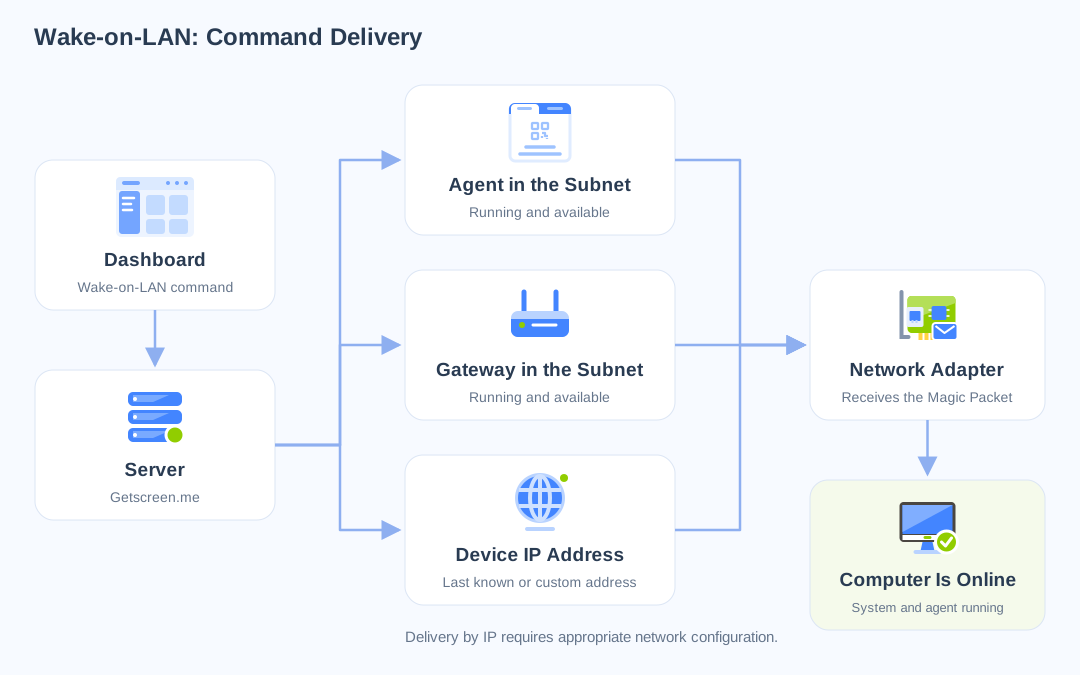
Wake-on-LAN turns on a computer using a network command. The network adapter receives a special packet, called a Magic Packet, and signals the computer to start. The computer must remain connected to power and an Ethernet network.
Setup
-
Connect the computer to your router using an Ethernet cable.
-
Enable Wake-on-LAN in BIOS/UEFI.
-
In Windows, open the Ethernet adapter properties in Device Manager, enable Wake on Magic Packet, and allow the adapter to wake the computer in the power management settings, if available.
-
Configure a delivery path for the wake-up command.
Getscreen.me supports delivery through a running agent or Gateway on the same subnet, to the device's last IP address, or to a custom IP address and port. For a home network behind a router, an always-on device running the agent or Gateway is a convenient option. Sending a packet to a public IP address from outside the network requires appropriate network configuration: the router's public address alone does not ensure that the packet reaches a powered-off computer.
Detailed Guide
Detailed hardware and network setup instructions are available in the Wake-on-LAN guide.
Turning On the Computer
In Permanent Access, select the powered-off computer and run the Wake-on-LAN command. This command is available for offline devices. Wait for the operating system to start and the device to come online.
Smart Plug
A smart plug lets you remotely supply power to the computer. To make the computer start automatically when power is supplied, configure BIOS/UEFI to turn it on when AC power is restored.
This method is primarily suitable for desktop computers and mini PCs. For a laptop with a battery, switching off the plug usually does not remove power completely, so this scenario needs to be tested separately.
Setup
-
Connect the computer to a smart plug and configure internet access for the plug according to the manufacturer's instructions. Test control from your phone over a mobile network.
-
In BIOS/UEFI, find the power recovery setting, such as Restore AC Power Loss, and select Power On. The Last State option may leave a previously powered-off computer off.
-
Save the settings and start the operating system.
Learn More
For a setup Restore AC Power Loss example, see the ASUS instructions.
Turning On the Computer
Shut down the computer normally in advance, then switch off the plug through its app. When you need access, switch the plug on. The computer will receive power and start up.
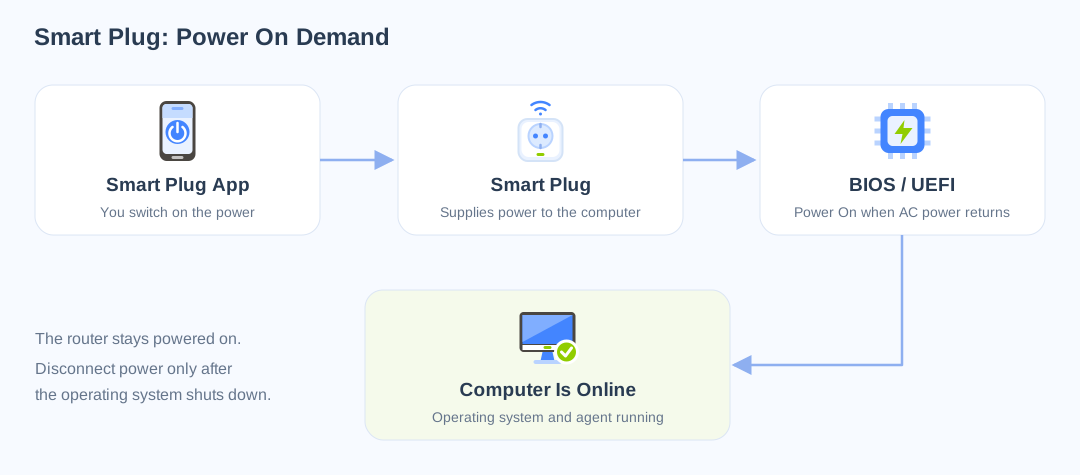
If the plug remained on after shutdown, switch it off, wait, and then switch it back on. The required delay depends on the hardware; ASUS recommends leaving the power disconnected for 30 seconds for this feature.
Disconnecting Power
Do not use the plug as the normal way to shut down a running computer: unsaved data may be lost. Shut down the operating system first. The router and smart home hub must have a power supply independent of the controlled plug so that you can still turn it back on.
Schedule
If you know in advance when you will connect, configure automatic power-on in BIOS/UEFI. For example, the computer can start every day before your working hours while you are away.
Setup
-
Open BIOS/UEFI and find the scheduled power-on feature, such as Power On By RTC.
-
Enable it and set the time and an available repeat option.
-
Check the BIOS/UEFI clock: the schedule uses this clock, not the time on the device you connect from.
-
Save the settings and test a scheduled startup from a powered-off state.
Learn More
For an example that includes the required ErP and Windows Fast Startup settings, see the ASUS RTC instructions.
Turning On the Computer
Leave the computer connected to power. It will start automatically at the scheduled time. An internet connection is not required to trigger the schedule, but the agent will need one after the operating system starts.
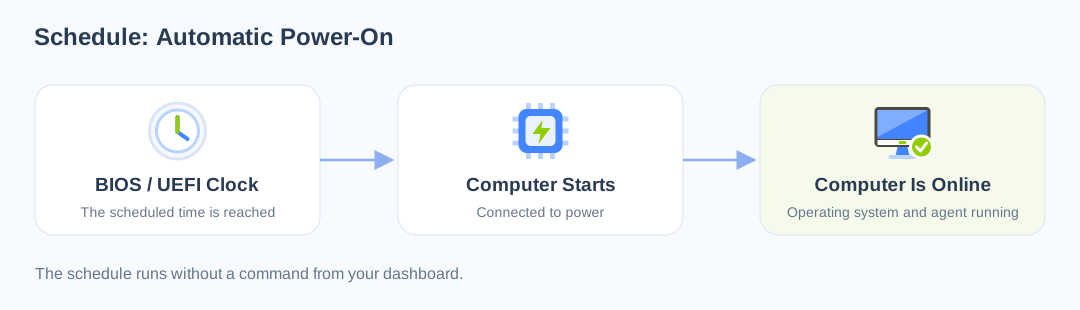
Account for time differences when traveling. Adjust sleep settings so the computer remains available until you connect. If you miss the scheduled startup and then shut down the computer, the next automatic startup will follow the configured schedule.
Connecting from Your Dashboard
After turning on the computer using your chosen method, wait for the operating system to start and the Agent App to reconnect.
-
Sign in to your Getscreen.me dashboard.
-
Open Permanent Access.
-
Find the computer and make sure it is online.
-
Click the connection button in the device list or on the device card.
A remote connection tab will open in your browser. You can control the computer, launch applications, and work with files within the permissions allowed by the agent.
Connection Features
Learn more about the features available during a remote connection in the Screen Control Features guide.
If the computer remains offline, check each stage in order: whether it turned on, whether the operating system started, whether internet access is available, and whether the Agent App is running. Before your trip, test the full cycle—shutdown, remote power-on, and connection—from another network, such as a mobile internet connection.