What is Gateway App?
Gateway is a small console application that provides other devices in the same network with access to the Getscreen.me server.
It is useful when a direct connection to the server is not available due to network restrictions, or when the server needs access to resources inside the customer’s local network that are not exposed to external networks.
The application is available for the Windows and Linux operating systems.
Features
Using Gateway does not add any new features, but it significantly improves how the system can be used by creating better conditions for those features to work. Here is what you can get when using gateways:
- Custom data proxying for connections between a remote device and a technician’s device
- Importing technician accounts from the corporate Active Directory
- Proxying the Magic Packet signal for Wake-on-LAN inside your local network
- Server access for the Agent application from restricted networks
Proxying connections to devices
Gateway can be used as a proxy server to transfer data between a remote device and a technician’s device during a connection session. This allows you to:
- Improve the network conditions between the remote device and the technician’s device, which can improve image quality and data transfer speed.
- Restrict physical access to traffic for security reasons.
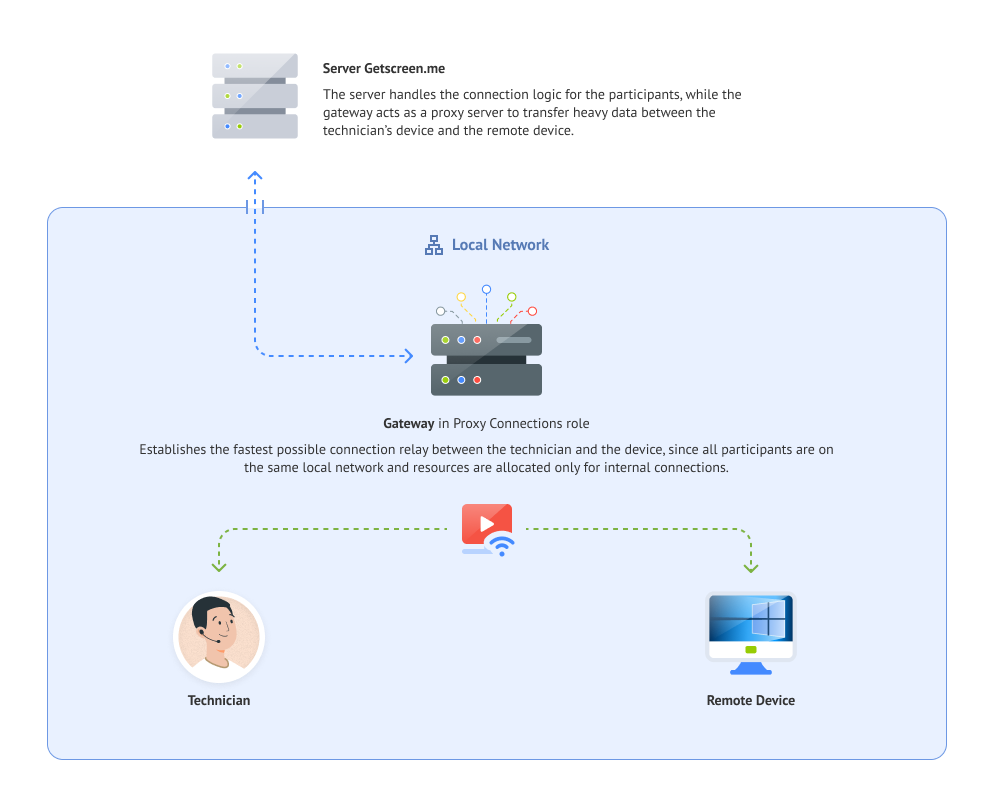
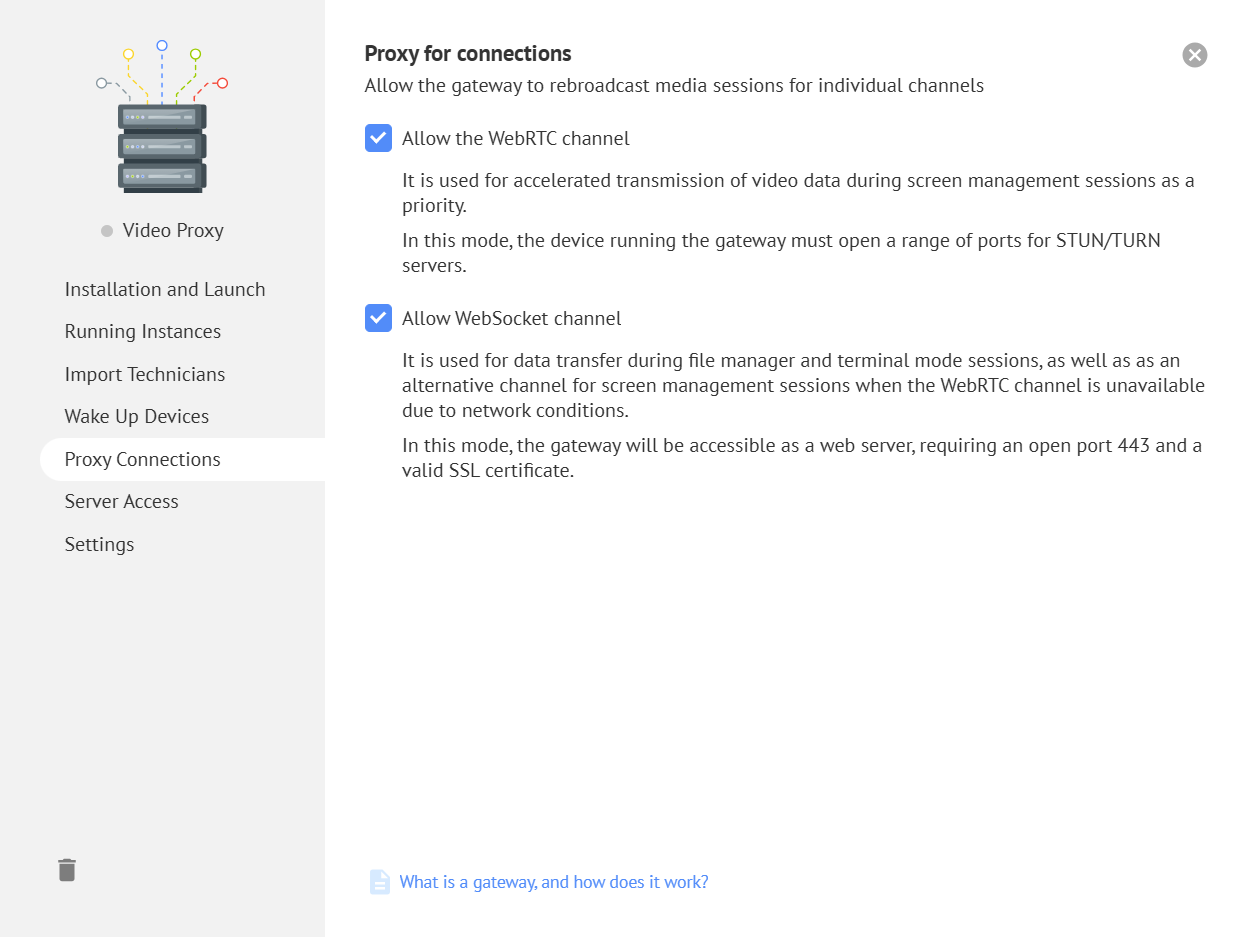
Gateway supports both data transmission channels: WebRTC and WebSocket. They can be used separately or at the same time.
Custom Proxy Server
Learn more about deploying a custom proxy server in the detailed guide.
Data Transmission Channel
Learn more about data transmission channels in the Screen Image Quality guide.
WebRTC
Although WebRTC is a protocol for establishing P2P connections, it still requires access to service STUN servers to detect the participants’ IP addresses and TURN servers to proxy data when P2P connections are not possible due to network conditions. Gateway runs these servers to keep the channel operational.
Network requirements
For Gateway to work as a proxy for the WebRTC channel, it must be available by its IP address to all other participants in the connection process: the server, the Agent application, and the technician’s browser. The required ports for incoming TCP and UDP connections must also be open. See the Configuration section for details.
 The proxy server for the connection session is selected by the Agent application on the remote device. Restart the Agent application to make your Gateway available for selection as a proxy.
WebSocket
To support the alternative channel, Gateway runs as a public web server and proxies HTTP connections over the WebSocket protocol.
Network requirements
To keep Gateway operational, it must be accessible by domain name to all other participants in the connection process: the server, the Agent application, and the technician’s device.
After creating an A record that points the domain name to the Gateway IP address, specify the hostname in config.json in the proxy.websocket.host field. See the Configuration section for details.
You also need an SSL certificate for your domain name so that the browser can establish a secure connection. Place the certificate file and the private key file in the cert folder next to the executable file, using the following names: server.crt and server.key.
By default, Gateway listens for incoming connections on port 443 on all available IP addresses. To change these settings, specify different values in config.json in the proxy.websocket.listen_ip and proxy.websocket.port fields. See the Configuration section for details.
The proxy server for the connection session is selected by the Agent application on the remote device. Restart the Agent application to make your Gateway available for selection as a proxy.
System requirements
To use Gateway as a custom proxy, the recommended minimum system requirements for the device running it are:
- RAM: 2 GB
- CPU: 2 cores
- Drive: 16 GB
- Bandwidth: up to 100 Mbps
Importing technician accounts from Active Directory
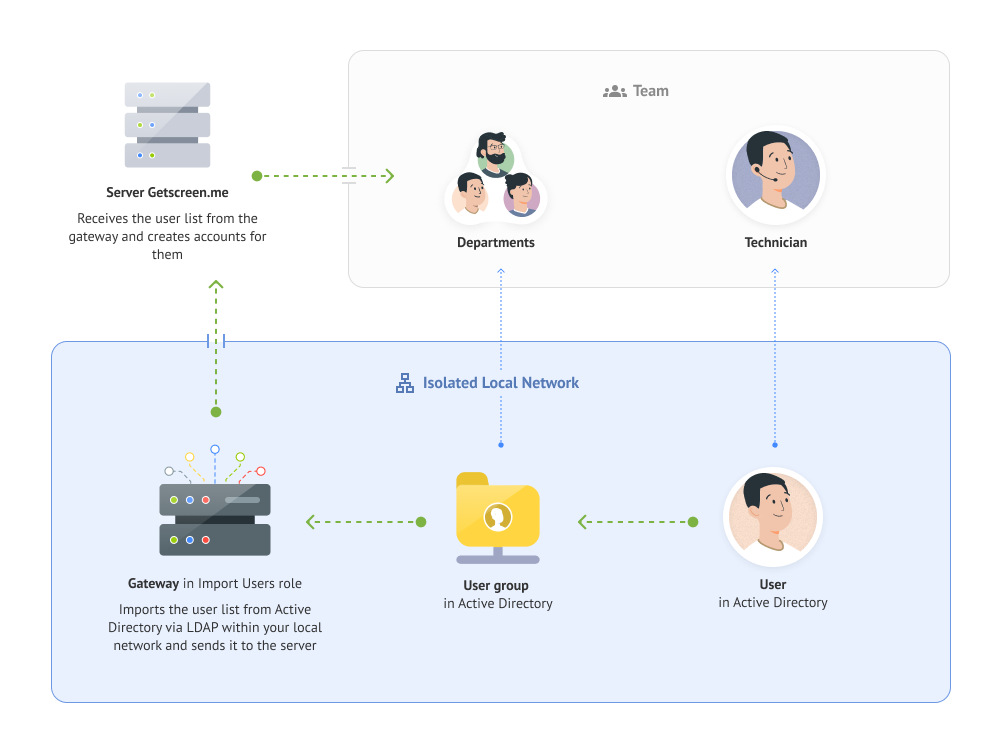
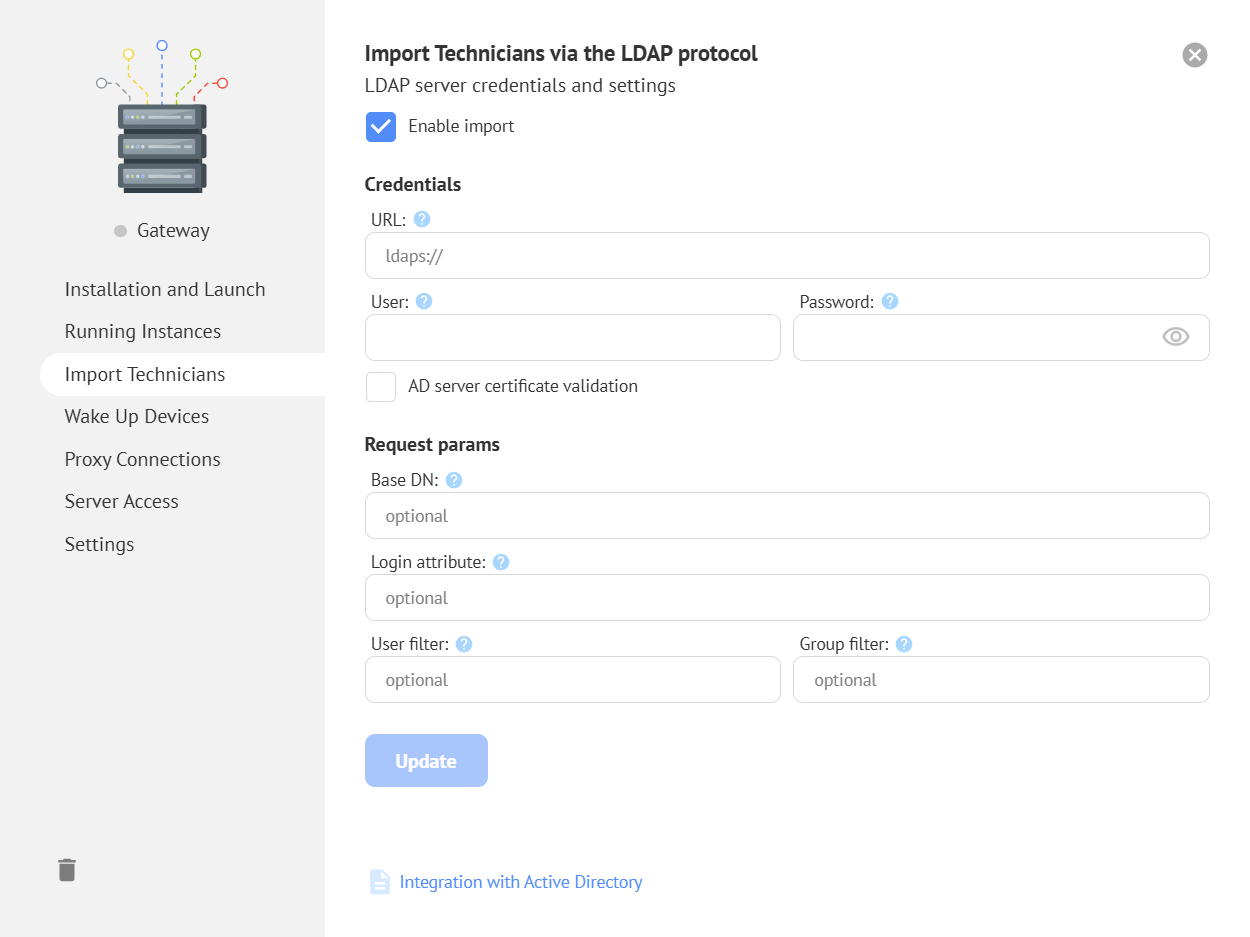
Active Directory domain controllers usually do not have open Internet access for security reasons. Because of this, the Getscreen.me server cannot directly send requests to import accounts from Active Directory. To give the server access to Active Directory, run the Gateway application inside the same local network as an intermediary. The running Gateway can synchronize accounts by performing the following operations as instructed by the server:
- Receive credentials from the server for connecting to Active Directory
- Connect to Active Directory over LDAP and retrieve user account data
- Send the retrieved data to the server
Network requirements
To use Gateway as an Active Directory data importer and send data to the Getscreen.me server, the device running Gateway must have open access to the server by domain name on port 443, and open access to the Windows directory service over LDAP. A public IP address is not required.
Integration with Active Directory
See the detailed instructions for importing technician accounts from Active Directory in the detailed guide.
Technicians and Access Rights System
Learn more about the access rights system and technician accounts in the detailed guide.
Proxying the Magic Packet signal for Wake-on-LAN
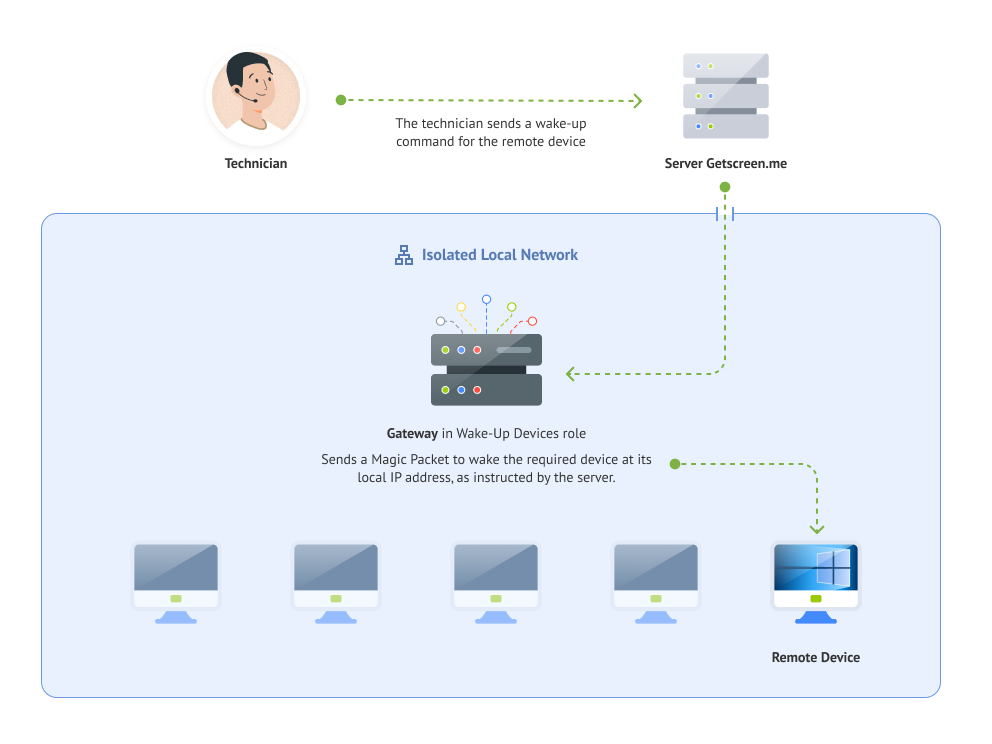
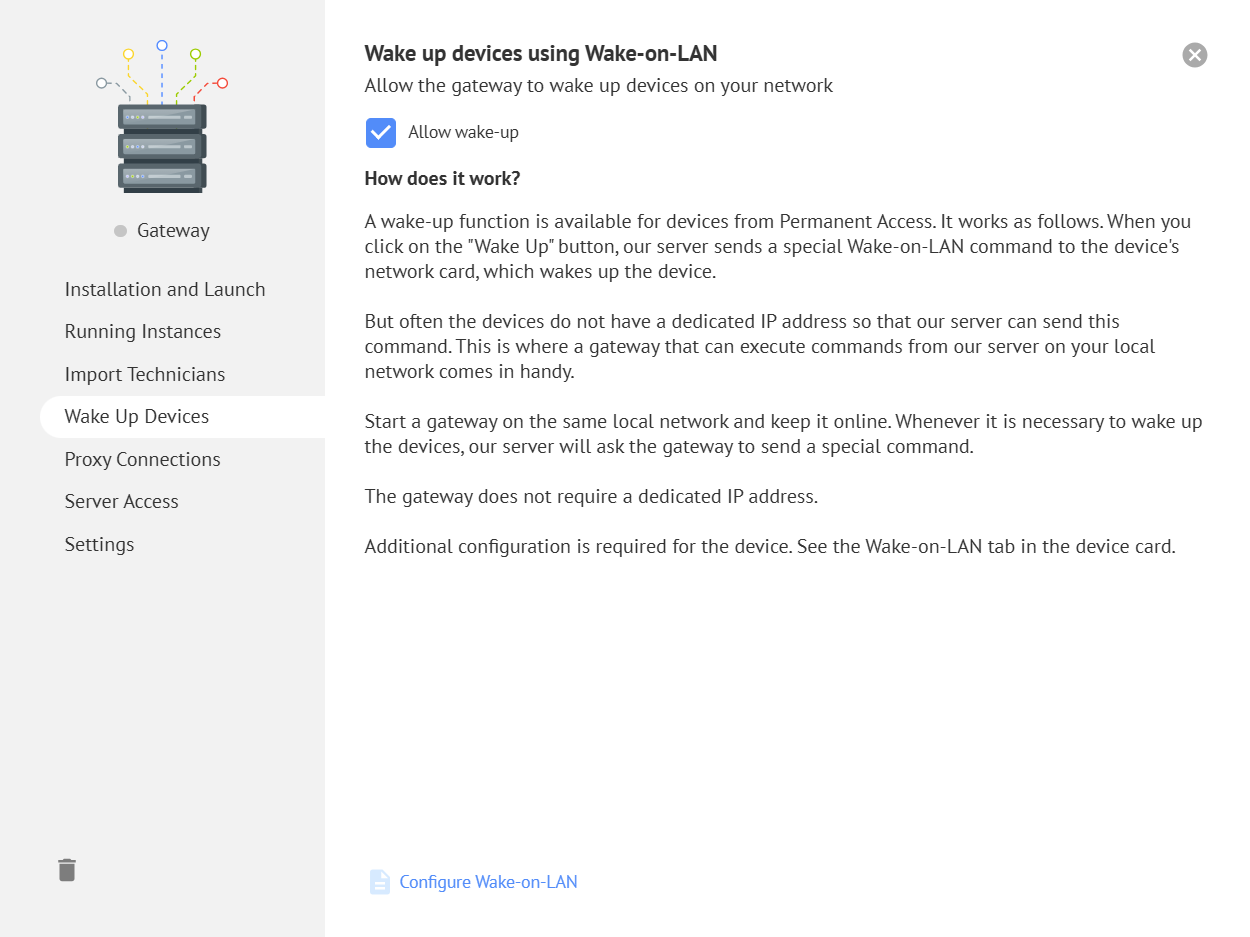
When a device is woken up using Wake-on-LAN, the server sends a Magic Packet signal to all known IP addresses of the target device. However, the target device often does not have a public IP address, so the packet may not reach it. At the same time, the device may be connected to other devices in the local network and can receive the wake-up signal from them.
This means you can turn one of the devices in your local network into a “watcher” by installing the Gateway application on it. At the server’s request, Gateway sends the Magic Packet signal over the local network, ensuring that the target device is woken up reliably.
Network requirements
To use Gateway as a Magic Packet forwarder, the device running Gateway must have open access to the server by domain name on port 443. A public IP address is not required.
Wake-on-LAN
Learn more about the device wake-up feature in the detailed guide.
Server access for the Agent application from restricted networks
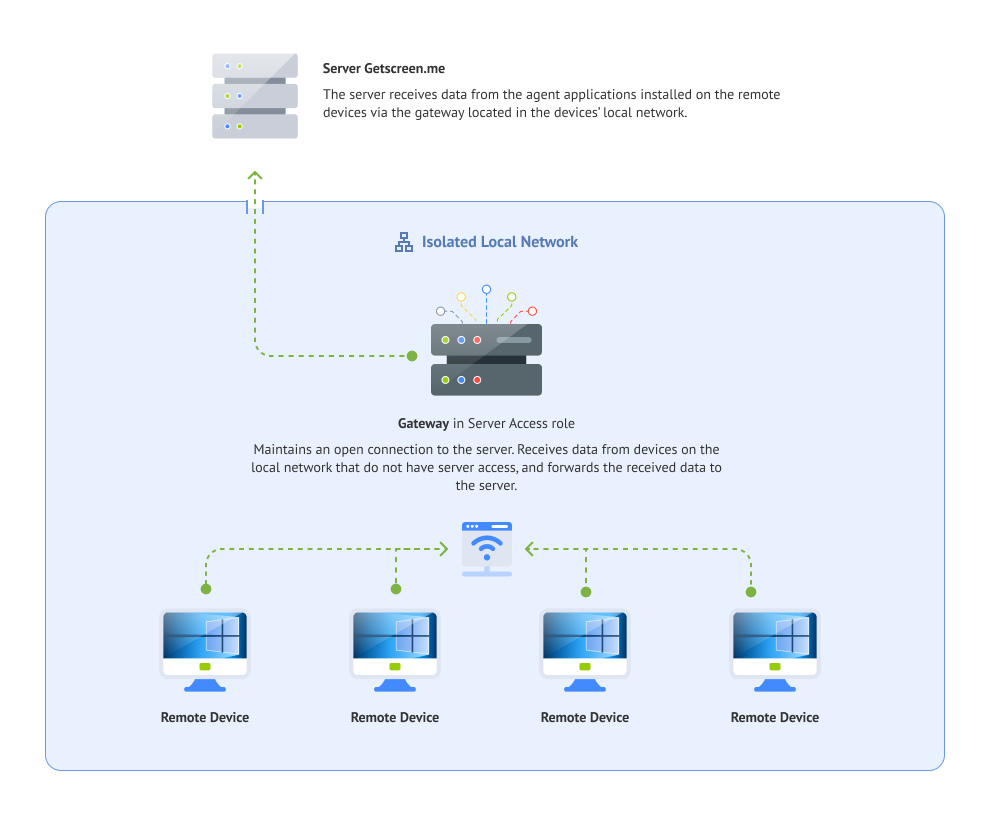
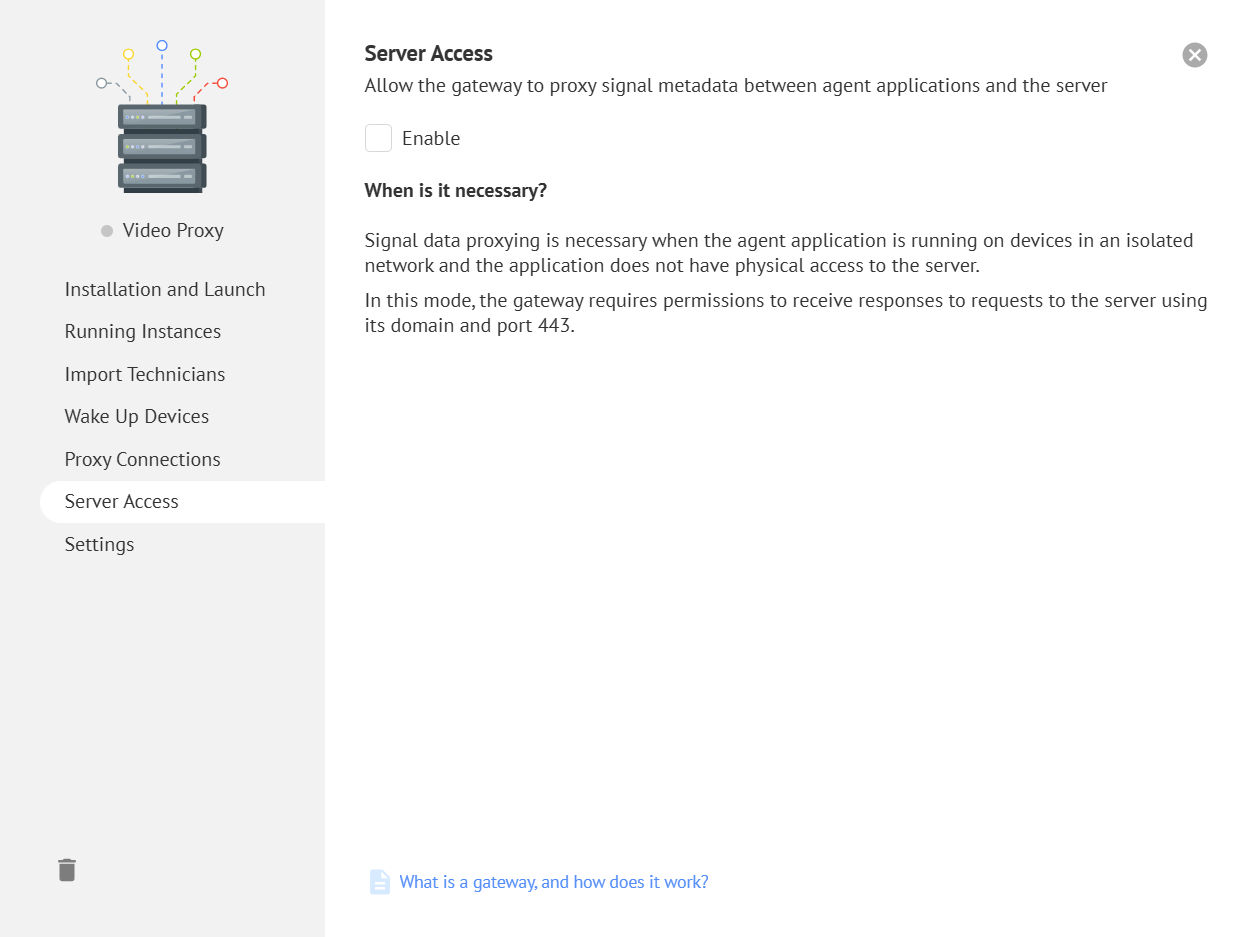
When the Agent application on a remote device has no direct access to the server, it can connect to the server through a Gateway that does have server access. This may be required when setting up remote access to devices without Internet access, for example in restricted corporate networks.
Network requirements
For Gateway to work, the device running Gateway must have open access to the server by domain name on port 443. A public IP address is not required.
Gateway configuration
To change the port used by Agent applications to connect to Gateway, update the proxy.websocket.port setting in config.json. See the Configuration section for details.
Starting the Agent App
To use Gateway, start the Agent App with the Gateway address and port specified as a custom connection server in the -config parameter, as shown in the example below:
About the Agent application
Learn more about the Agent application in the separate guides:
Managing Gateways
A running Gateway application is identified on the server by a token that Gateway sends to the server when connecting. The server uses this token to identify the Gateway owner account and the roles available for it.
Tokens and roles can be managed in the personal account on the Gateways page in the Settings section.
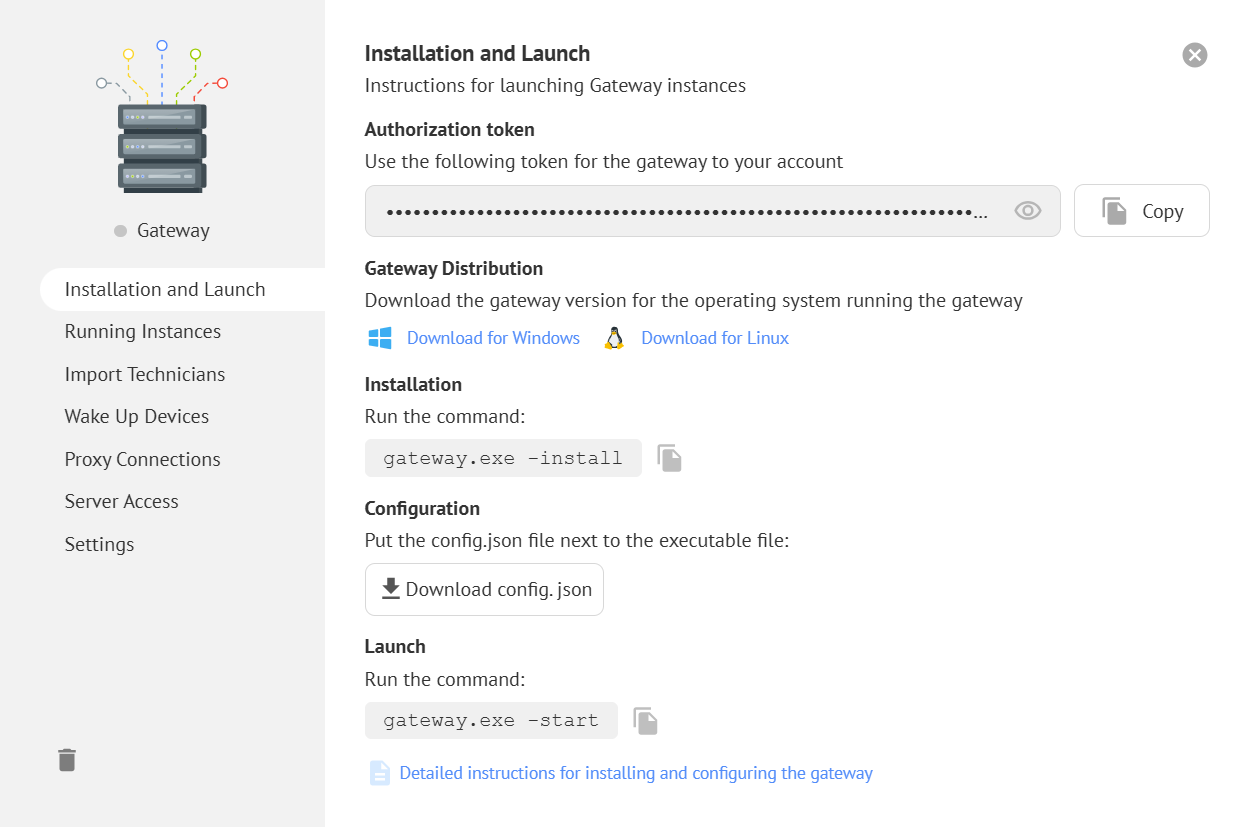
On the Installation and Launch tab in the token card, you can find brief Gateway installation instructions and download a preconfigured config.json file for configuring the running instance. This file contains the server address and token.
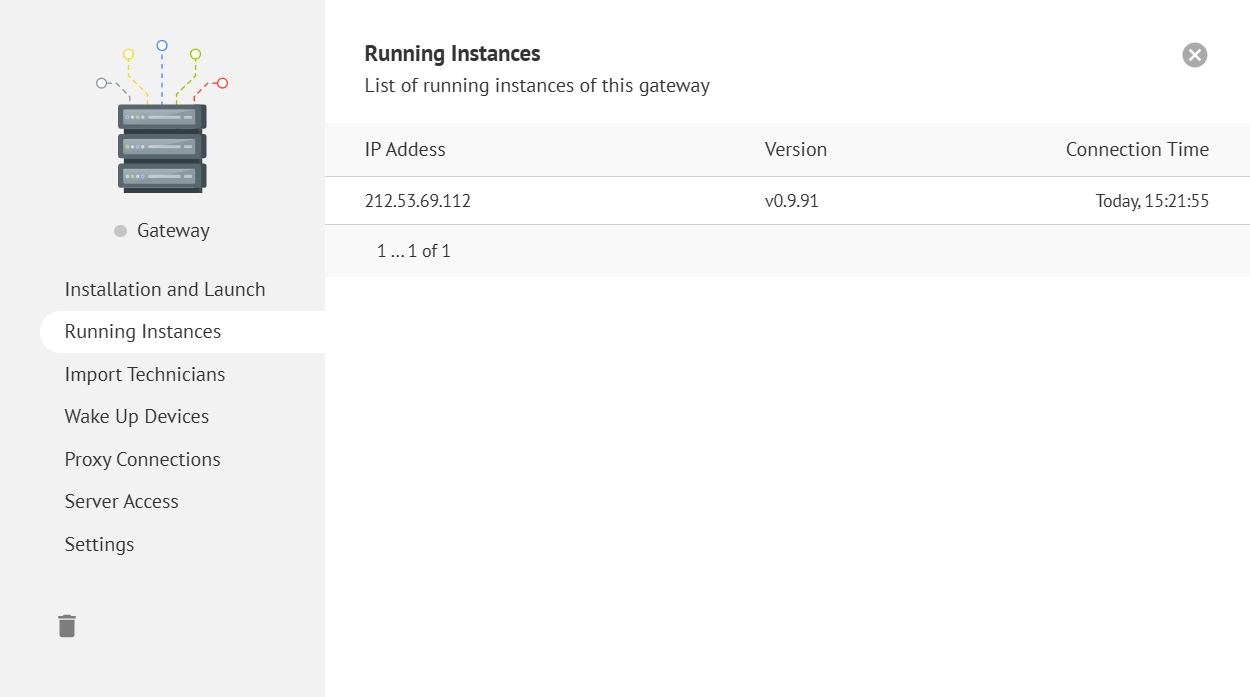
On the Running Applications tab, you can see the list of running instances using this token.
On the other tabs, you can enable or disable the required Gateway roles:
Installing and starting the service
The Gateway application is managed using console commands.
To install the Gateway application as a service, use the -install command:
Execution Permission
On Linux systems, you need to make the file executable with: chmod +x ./gateway
To start the service, use the -start command:
List of all available commands:
| Command | Description |
|---|---|
-install | Install service |
-uninstall | Uninstall service |
-start | Start service |
-stop | Stop service |
Configuration
A running Gateway instance is configured using the config.json file, which must be located next to the executable file. Restart the application to apply any changes.
Connecting to the server
Connection settings for the Getscreen.me server:
| Parameter | Type | Description |
|---|---|---|
server.host | string | Server address. Default: getscreen.me |
server.token | string | Authorization token. See the Management section |
server.secure | boolean | Connect only to servers with a valid SSL certificate. Default: true. |
Example
Proxying connections
Settings required to run Gateway as a data proxy when connecting to remote devices:
| Parameter | Type | Description |
|---|---|---|
| WebRTC Channel | ||
proxy.webrtc.public_ip | string | Public IP address |
proxy.webrtc.listen_ip | string | Internal IP address for listening for incoming connections |
proxy.webrtc.port | number | Port for listening for incoming TCP connections. Default: 3478. |
proxy.webrtc.udp_ports_max | number | Maximum port in the range for listening for incoming UDP connections. Default: 60000 |
proxy.webrtc.udp_ports_min | number | Minimum port in the range for listening for incoming UDP connections. Default: 40000 |
| WebSocket Channel | ||
proxy.websocket.host | string | Domain name where Gateway will be available and for which the SSL certificate is issued |
proxy.websocket.listen_ip | string | IP address for listening for incoming connections. Default: 0.0.0.0 |
proxy.websocket.port | number | Port for listening for incoming connections. Default: 443 |